Comparing assessments
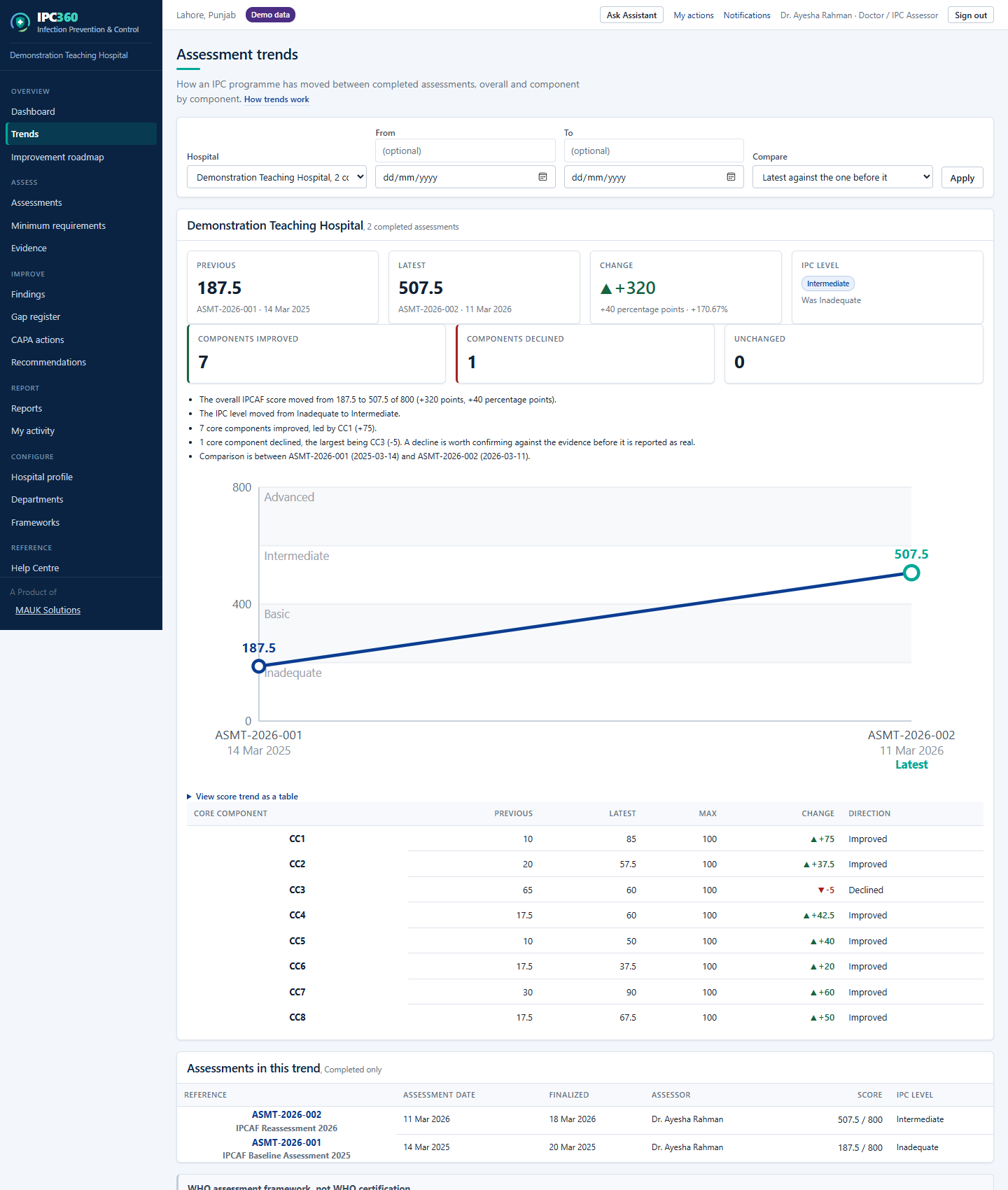
Trends compares your completed assessments, overall and component by component, and states the change in points rather than implying it with a line.
- Open Trends from the sidebar.
- Choose the hospital, if you assess more than one.
- The summary strip shows Previous, Latest, Change and IPC level.
- Beneath it, the table lists every core component with its previous score, latest score and the change.
By default the latest assessment is compared with the one before it. Use the Compare selector to compare a different pair.
Nothing is smoothed, interpolated or extrapolated. Two assessments give two points and one comparison; no missing measurement is ever invented to fill a gap in the line.
Source: IPC360 Help · Assessment trends
Related
- Reading an improvementAn improvement is shown as a positive change in points, the number of components that improved, and, where it applies, a move to a higher IPC level.
- Reading a declineA fall in score is stated as plainly as a rise; it usually means either a genuine deterioration or a more honest assessment than the last one.
- Why only completed assessments appearA trend needs measurements, and only a finalized assessment has a score of record; plotting a half-answered draft would show data entry as improvement.
Did this answer your question?
Ask IPC360 Assistant if you need this applied to your own assessment, or contact the MAUK Solutions team.
See also: Draft assessments · Starting an assessment · A hospital’s progress over time