Signing in
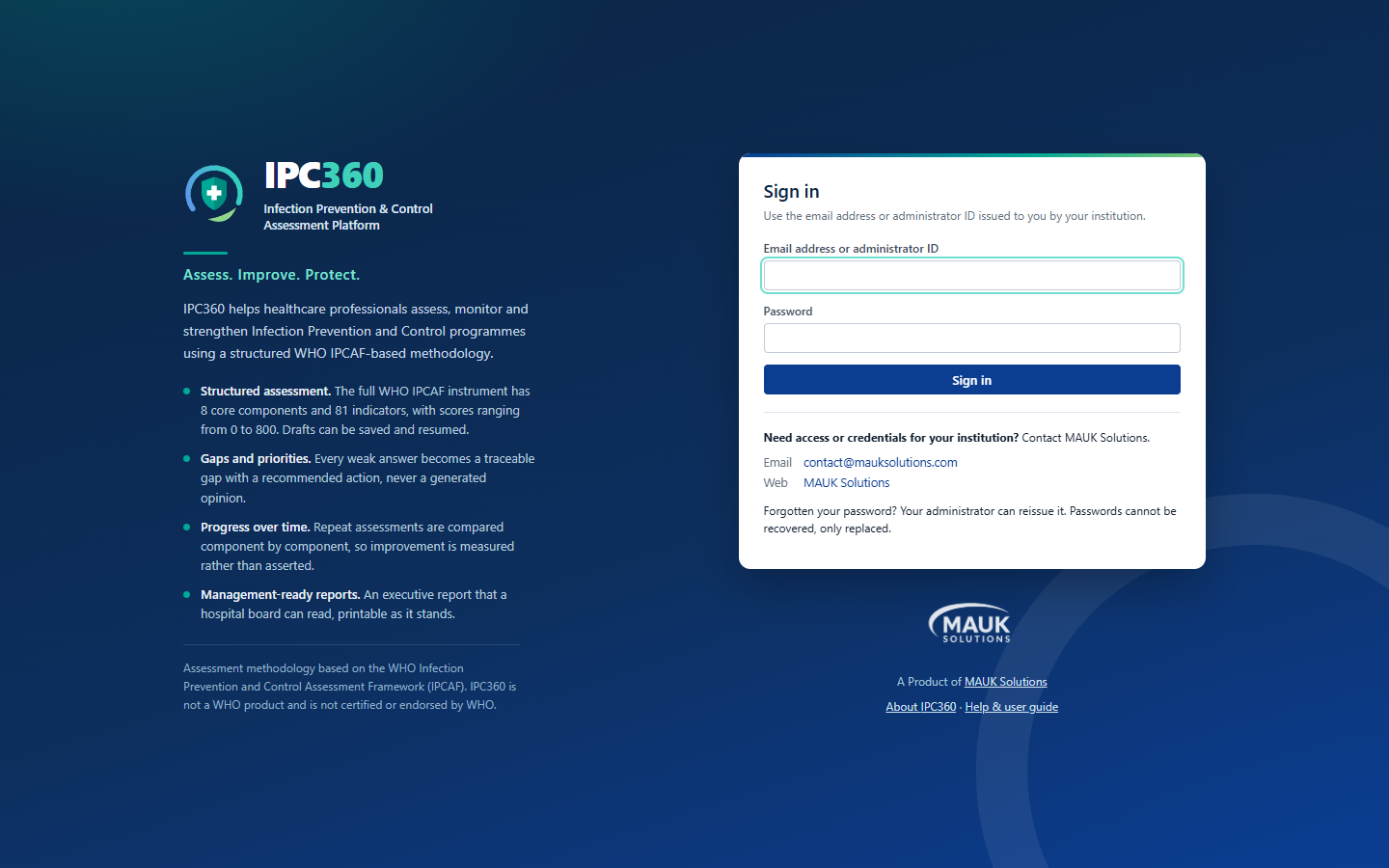
There is one sign-in page for everybody: doctors use their email address, administrators use the administrator ID they were issued.
- Open IPC360 and enter your email address (or your administrator ID) in the first field.
- Enter your password.
- Select Sign in. IPC360 automatically opens the assessment dashboard for a doctor or the administrator portal for an administrator.
If your details are not accepted
The message is deliberately the same whether the account does not exist or the password is wrong. That is what stops the sign-in page being used to discover who holds an account.
After several failed attempts the account locks for a short period. Wait, then try again. If you have forgotten your password, select Forgot your password on the sign-in page.
Note: Your institution issues your credentials. If you do not have them yet, contact MAUK Solutions from the sign-in page.
Source: IPC360 Help · Signing in
Related
- Changing your initial passwordAn account created by an administrator has a temporary password; IPC360 asks you to replace it the first time you sign in, before anything else.
- I cannot sign inCheck that you are using the right identifier and password. If you have forgotten your password, select Forgot your password: your administrator or MAUK Solutions issues a new one. If you do not have an account at all, see Getting an IPC360 account.
- Signing out safelySelect Sign out in the top bar when you finish, especially on a shared or ward computer; your session also expires on its own.
Did this answer your question?
Ask IPC360 Assistant if you need this applied to your own assessment, or contact the MAUK Solutions team.
See also: Changing your password